The Silent SaaS Threat: Part 2 – The Proactive Playbook
tl;dr
In part 1, we identified the risks. In part 2, we lock down the SaaS environment to prevent an incident from happening. The following steps outline how to proactively harden an Entra environment reducing the SaaS attack surface.
- Disable user consent entirely and implement an Admin Consent Workflow to stop unvetted applications from accessing data.
- Understand the difference between Delegated and Application level permissions to prevent apps from gaining too much access.
- Require explicit user assignment on first-party apps to block attackers from exploiting trusted applications.
- Implement tenant-wide credential hardening and build application cleanup into your standard off-boarding process.
OAuth abuse in SaaS environments occurs when an attacker tricks a user into granting permissions to a malicious application, allowing persistent access to data without needing the user's password or MFA.
Introduction
In Part 1, we laid out the reality of SaaS sprawl in Microsoft Entra environments, hundreds to thousands of OAuth apps accumulating like digital dust, often with unclear ownership, excessive permissions, and no expiration date. We saw how real-world breaches like the Salesloft Drift campaign (a.k.a. UNC6395) and Midnight Blizzard (a.k.a. APT29) exploited these gaps, turning trusted integrations into persistent backdoors.
While we originally planned a two-part series, SaaS has led us down a deep rabbit hole. As a result, we are splitting this topic into three-parts to keep it actionable. This post (Part 2) focuses on proactive hardening, while Part 3 (coming soon) will cover the response side.
In this post, we shift from identifying the problem to actively reducing the SaaS attack surface. Below, we outline practical steps to harden your Entra environment before such risks are exploited.
App Consent Phishing
As we previously discussed in Part 1, the “productivity first” era of Entra was less than desirable for security. The single most important control is limiting who can grant consent. Lucky, today Entra gives organizations a few ways to secure this. Let’s break down the three primary options, ranking them and highlighting the residual risk of each.
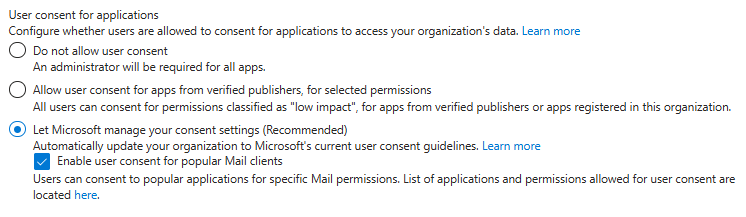
1. Disable user consent entirely
Disabling user consent entirely is the absolute gold standard. It stops most of the risk around new applications being added, since nobody can click “Accept” without security getting involved. However, even with this enabled an organization if not fully safe. The residual risk here is that disabling user consent only stops new applications. It does not revoke access for the applications that users already consented to in the past.
2. Allow user consent only for low-risk, verified publishers
There is also an option to allow user consent only for low-risk, verified publishers, which we consider a moderate risk. Let's not fall for the “verified” illusion. “Verified” simply means Microsoft has confirmed that the business exists, it does not mean the application is secure or legitimate. In our testing, it was relatively easy to get an application marked as a verified publisher. The residual risk here is a supply chain exposure. If that verified vendor is breached, an attacker inherits that trust and bypasses the consent perimeter.
3. Require admin approval for high-impact permissions
Lastly, organizations can let Microsoft manage the consent settings. It sounds like an easy win for an IT team, a classic “set it and forget it” approach. However, enabling this setting also automatically turns on a small but important option: “Enable user consent for popular mail clients”.
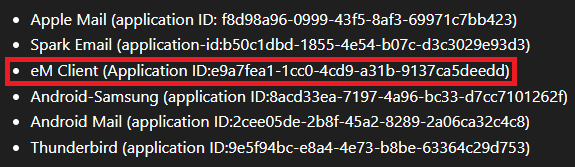
The residual risk becomes obvious when taking a closer look at what Microsoft considers a “popular mail client”. One name immediately stands out to many incident responders: eM Client. The abuse of this specific application is a top Business Email Compromise tactic used to bypass MFA and scrape mailboxes. It is so frequently weaponized by threat actors that it sits prominently on community blocklists, such as the Huntress RogueApps list and the Microsoft-Analyser-Suiteapplciation blacklist. We’ve previously done a deep dive into eM client and its use by threat actors.
This raises an important question. Is delegating consent settings entirely to Microsoft the best thing to do? The real risk across all of the default solutions, whether leaving consent wide open, trusting verified publishers, or relying on Microsoft's recommended defaults, is that they all leave a pathway open for attackers to establish persistent, MFA-bypassing access to the environment.
The Invictus Approach
If relying on default consent settings leaves an organization exposed to BEC TTPs, then what should organizations actually do? We recommend our clients follow a three-step approach:
- Disable user consent entirely.
- Enable the Admin Consent Workflow.
- Application review.
We recommend this combination because completely shutting off user consent without an alternative creates friction. If an organization simply disables consent, a user hits a frustrating "blocked" screen whenever they try to use a new tool. This leads to help desk tickets and employees trying to actively bypass security.
Instead of a hard block, the user gets a prompt to request the app. The request goes into a secure queue, requiring an administrator's approval before any permissions are ever granted. This approach avoids blocking legitimate business needs, while keeping the keys to the kingdom firmly in the hands of the security team.
To put it into an analogy: by disabling user consent, an organization securely locks the front door to keep intruders out. But by enabling the Admin Consent Workflow, they install a doorbell so legitimate guests can still ask to come in. In order to effectively adopt this approach there are a few key areas every organization should understand, as detailed below.

1. Understand Microsoft Graph Permissions
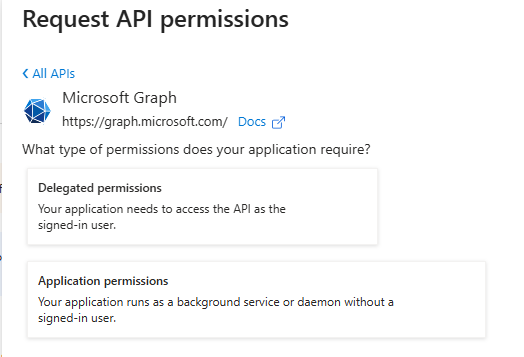
Overprivileged Graph permissions are one of the common risk patterns we see in Entra environments. When reviewing a consent request, administrators must understand Microsoft Graph because not all permissions are equal; specifically, recognizing the critical difference between the two types of access is essential:
- Delegated Permissions: Allow an app to act as the user. The app's power is limited by what that specific user is allowed to do.
- Application Permissions: These are high-risk "background" permissions. They allow an app to access data without a user signed in, often across the entire organization (e.g.,
Mail.Readfor all mailboxes).
Let’s take a closer look at an example of how this would work and its importance. Imagine an employee request to use a new trendy AI meeting scheduler.
- If the app requests Delegated
Calendars.ReadWrite, it can only manage the calendar of the specific employee who requested it. - If the app requests Application
Calendars.ReadWrite, it can read and write calendars in all mailboxes, silently, without any user interaction.
Before approving consent, administrators should evaluate:
- Is this permission delegated or application-level?
- Is there a narrower alternative (E.g.,
Mail.Read.Basicinstead ofMail.Read.All)? - Does the business case justify the access level?
2. Assignment Required
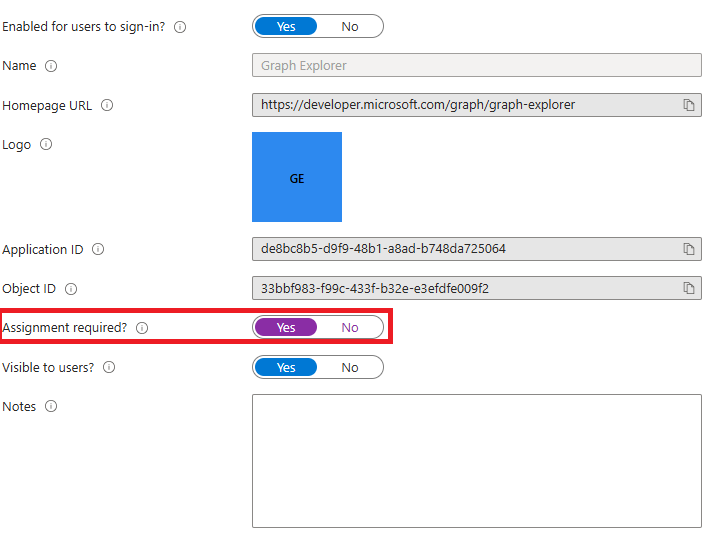
There is a specific class of "First-Party" applications built by Microsoft that often bypass standard consent policies. Apps, like the Azure CLI or Microsoft Graph, are implicitly trusted. Attackers exploit this in ConsentFix attacks, tricking users into authenticating through these legitimate tools and then stealing the resulting authorization code.
The solution revolves around a fundamental principle in Entra ID. Requiring User Assignment. By setting AppRoleAssignmentRequired to true on a service principals.This fundamental principle ensures that even if an app is "trusted," a user cannot authenticate to it unless they have been explicitly assigned to it by an admin. This breaks the attack chain at step one.
3. App Management Policies & Off-boarding
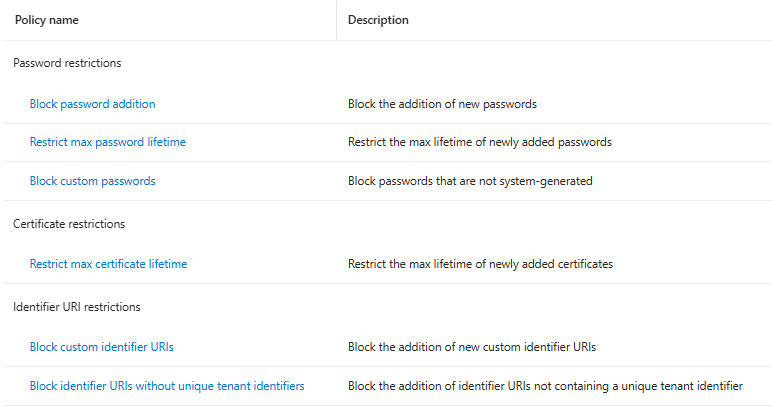
Modern Entra ID allows organizations to set tenant-wide "guardrails" for applications through Application Policies, these policies can enforce hygiene:
- Credential Hardening: Block the addition of new "Client Secrets" (passwords) for specific apps.
- Lifetime Restrictions: Enforce a maximum lifetime for certificates (e.g., 180 days) to ensure credentials are rotated regularly.
Application cleanup should also be part of both employee and vendor off-boarding. When a contract ends or a project is abandoned, the associated Enterprise Application(s) should be reviewed and removed. OAuth integrations must have lifecycle management just like user accounts do.
What’s Next?
In Part 2, we built the fortress. In Part 3, we assume breach. We are moving from preventative controls into the trenches of SaaS Incident Response. We will show exactly what to look for when an OAuth app turns against an environment.
Related reading
- The Silent SaaS Threat: Part 3 – The Response Playbook
- The Silent SaaS Threat: The 5 Questions
- Profiling Silk Typhoon: Tactics, History & Defenses
- What DFIR experts need to know about the current state of the Unified Audit Log
About Invictus Incident Response
We are an incident response company and we ❤️ the cloud. We specialize in supporting organizations in preparing for and responding to cyberattacks. We help our clients stay undefeated!
🆘 Incident Response support: reach out to cert@invictus-ir.com or go to https://www.invictus-ir.com/24-7
Be ready for the next cloud incident.